



Make your LinkedIn profile reflect the work you do.

Use the free LinkedIn strategist skill to review your personal profile or company page. Get a clearer headline, rewritten About section and a list of outdated details to fix.

I ran it on my own profile and the InnovateX Solutions and Academy company pages. It caught old service descriptions, missing information about our AI work and a broken website link.

Free skill + setup guide. Use it with your own AI account.

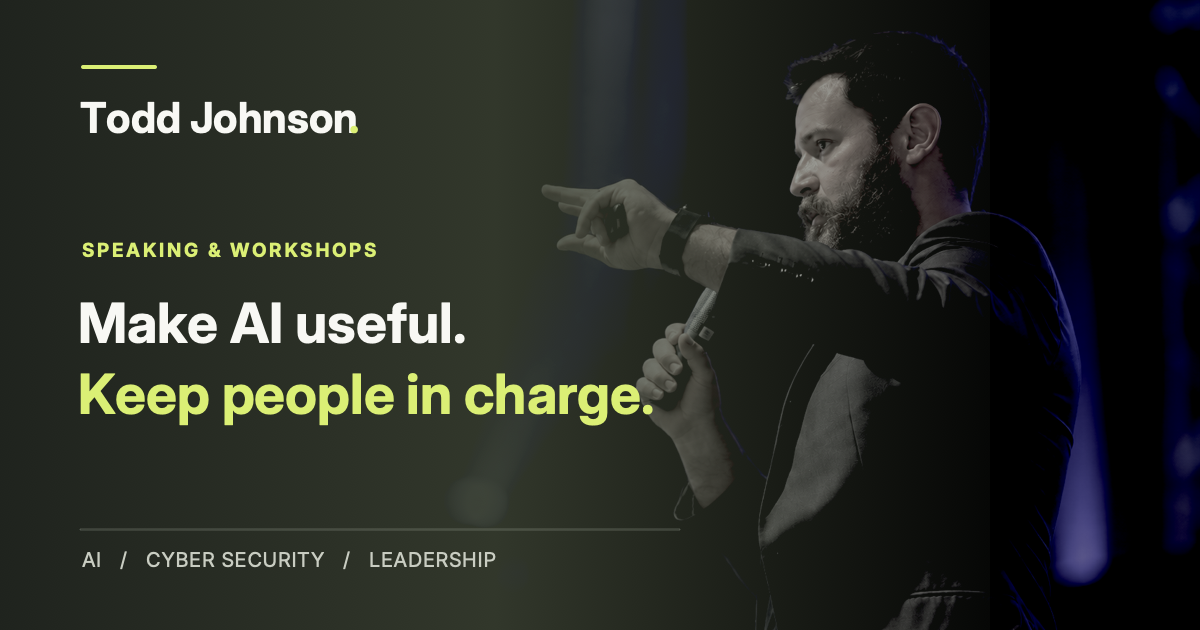
Todd’s revised banner connects InnovateX Solutions, InnovateX Academy and his personal brand, with the message Technology should leave people more capable.
Todd Johnson From my profile review

Todd Johnson

Founder of InnovateX Solutions & InnovateX Academy

Revised About · excerpt

“I help Australian business owners and leaders make sound decisions about technology and AI, then put those decisions into practice.”

Actual profile artwork and revised copy, arranged for this case study.

Setup guidance for

  • Claude
  • OpenAI ChatGPT / Codex
  • Microsoft Copilot
  • Gemini
  • Grok

My profile still described
my old services.

I’d updated my About section, but the rest of the profile hadn’t caught up. The review on 5 October found these problems. Here’s what I changed.

Services that described my old work

What the review found
“Generalist”SMB networkingDev Ops

These terms still led my Services section. They gave little space to the leadership and delivery work I do now.

What I changed
Fractional leadershipTechnology deliveryPractical AI learning

I rewrote Services to connect the advice and delivery through Solutions with learning through the Academy.

What the review found

These items led the section. Someone looking for my services, courses or speaking had to keep searching.

What I changed

I added these three images so visitors could find the part of my work they were interested in.

What the review found

The website address in my contact details didn’t resolve. Anyone who clicked it hit a dead end.

What I changed

I fixed the address. The second review also confirmed that the booking button opened my calendar.

The earlier state is summarised from the review notes, not shown as a screenshot. The Featured images are the actual replacements. These changes were checked on 5 October 2026; they don’t represent measured gains in leads or views.

See my profile on LinkedIn

I checked our company
pages too.

Solutions needed to explain the services we offer now. Academy was a new page that needed its information filled in. I used the same skill for both.

InnovateX Solutions: name the services we actually deliver

The existing company tagline
“Expert IT consultancy & tailored tech solutions”

That could describe almost any IT consultancy. It didn’t mention our fractional leadership, AI implementation or custom software development.

The replacement we drafted
“Fractional CIO, CTO & Chief AI Officer | AI implementation, cloud transformation & custom software development”

The review also produced new About copy and suggested specialties. It recommended featuring a client testimonial and current services instead of older seasonal posts.

InnovateX Academy: prepare a new company page

I’d just created the Academy page. The review found an empty description and location, and recommended a training category instead of a technology category.

We prepared the About copy, specialties and contact details, plus this banner. The wording names the subjects we teach and who the training is for.

Academy company page banner prepared during the review: AI, cyber security and Microsoft 365. Practical training for owners and teams.
Actual banner prepared for the Academy company page.

Company-page examples come from the 5 October 2026 review and setup drafts. The copy and banner shown here were prepared during that work; the review record does not confirm when they were published.

What the skill can
write and review.

The skill is a set of instructions you add to your AI app. It guides the AI through a LinkedIn review and helps it write changes you can copy into LinkedIn.

Paste your existing profile or company page text into the chat, or attach screenshots. Explain what you do and who you want to reach. For example: “I advise small business owners on IT. I want them to book a call.”

Email me the skill

Write a headline that explains what you do

Your headline is the line beneath your name on LinkedIn. The skill can rewrite it to name your work and the people you help. It can also rewrite your About, Experience and Services sections, and recommend what to feature beneath them.

Paste the wording already on your profile and attach screenshots of your banner and Featured section. Ask for replacement text and a list of changes in priority order.

Make your company page describe your current business

Get a revised tagline, About description and list of specialties. The skill can spot services you’ve left out, suggest which posts to feature, and check whether your banner and website button point people towards the right offer.

Share your company page text and screenshots, plus a current list of products or services. For a new page, ask it to draft the missing sections from those business details.

Turn your own experience into a LinkedIn post

Paste a rough draft, notes from a project or a question a customer asked. Ask the skill to write a post, article or newsletter using those facts. You can ask for a shorter opening, a clearer explanation or less sales language.

Draft a comment or reply about what someone actually said

Paste the post or message into the chat and explain how you know the person. The skill can draft a relevant comment, reply or connection note. Read the draft, edit anything that doesn’t sound like you, then send it yourself.

Compare your posts and decide what to try next

Share recent posts and screenshots of their analytics, including the dates and any available impressions, comments or profile visits. The skill can compare topics and formats, then suggest your next post. It can’t identify which post brought in a client unless you provide that information.

Get the skill
in your inbox.

We’ll email you the LinkedIn strategist skill and the setup guide. You’ll get a ZIP for apps that support skills, plus a text file you can attach to a regular AI chat.

  • Guides for personal profiles, company pages, posts and replies
  • A text edition with all the instructions in one file
  • Setup instructions for all five platforms
  • A message you can copy to request a profile or company page review

Todd Johnson
Founder, InnovateX Solutions

Where should we send it?

It’s free. No LinkedIn login needed.

By requesting the skill, you agree that InnovateX Solutions can store these details and email you this resource. This does not subscribe you to marketing emails. Privacy policy.

Set it up in your AI app.

Choose the app you use. These steps show which file to download and where to put it. The skill is free; you still need your own account with the AI provider.

Guidance checked 6 October 2026. Features can vary by account and rollout.

Install in Claude

  1. Download the ZIP from your email.
  2. In Claude, enable code execution and file creation under Settings → Capabilities if required.
  3. Open Customize → Skills → + → Create skill → Upload a skill. Upload the ZIP and enable it.
  4. Start a chat, ask Claude to use LinkedIn strategist, and paste your existing profile or company page text. Attach screenshots of the sections you want reviewed.

Your organisation may control custom skill access. Claude’s skill guide

Use with ChatGPT or Codex

ChatGPT desktop / Codex

  1. Unzip the package and keep the linkedin-strategist folder intact.
  2. For Codex, put it in ~/.agents/skills/ or your project’s .agents/skills/ folder.
  3. Select the skill with $linkedin-strategist in Codex, or @ in supported ChatGPT surfaces, and request a review of your personal profile or company page.

For a regular chat, attach the text edition and ask ChatGPT to follow it when reviewing your profile or company page. Paste your existing text or attach screenshots in the same chat. That uses the instructions in the conversation; it does not install a persistent skill. OpenAI’s skill guide

Attach it in Microsoft Copilot

  1. Download the text edition from your email.
  2. In Microsoft Copilot, choose + → Add images or files and attach the TXT file.
  3. Ask Copilot to follow the attached instructions. Paste your existing profile or company page text, then explain what you do and who you want to reach.

This is conversation guidance, not a GitHub Copilot installation. Work accounts may have different upload controls. Microsoft’s upload guide

Add a skill or create a Gem

  1. On Gemini’s website, open Settings → Skills → Upload, if available.
  2. Upload the ZIP, review it and choose Create.
  3. Use / to select it, then paste your existing profile or company page text and explain what you want to change.

Skills are rolling out to eligible personal accounts. If unavailable, create a Gem, upload the text edition under Knowledge and instruct it to follow that file for LinkedIn tasks. Save and test it. Skills guide · Gems guide

Attach it in Grok

  1. Open xAI Grok and attach the text edition to a new chat.
  2. Ask Grok to follow the attached LinkedIn strategist instructions.
  3. Paste your existing profile or company page text, or attach screenshots. Explain who you want to reach and whether you want them to book a call, visit your website or take another action.

The instructions stay in this conversation. Attach the file again when you start a new chat. Grok’s file guidance

Ask for your first
LinkedIn review.

Paste your existing LinkedIn text or attach screenshots in your AI chat. Copy the review request, replace the bracketed parts, then send it. You can use it for a personal profile or a company page. Your AI may not be able to open a LinkedIn link on its own.

Use the LinkedIn strategist skill to review the [personal profile or company page] I’ve attached. I want to reach [the people I want as clients, readers or students] about [my services, products or training]. I want visitors to [book a call, visit my website or another action]. Check the existing text, images and links for outdated or missing information. Rewrite the headline or company tagline and About section to explain what I do and who I help. List any other changes in priority order and draft the replacement wording. Ask me for missing facts. Don’t invent achievements or results.

Before you download.

Will this edit my LinkedIn profile or company page automatically?

Not by itself. The skill provides the review instructions and prepares suggested edits. You can copy the edits into LinkedIn yourself, or ask an AI with computer use to apply the changes you approve.

Quick tip: use GPT-6 Astra with Computer Use. In ChatGPT desktop, switch to Work or Codex, enable Plugins → Computer Use and select GPT-6 Astra if available. Open your LinkedIn profile or company page in your browser, then ask: “Use the LinkedIn strategist skill and computer use to review this page. Show me the proposed edits, then apply the changes I approve.” This lets the AI inspect the live page without you copying every section. Computer Use setup guide.

Do I need LinkedIn Premium?

You can review a personal profile or company page and draft content without Premium. Some LinkedIn features depend on your account. The skill is instructed to check availability before recommending a setting.

Can it post or send connection requests for me?

This download provides instructions, not a LinkedIn integration. It helps you draft and plan. It does not automatically post, send messages, scrape profiles or grow your network.

Does it guarantee more leads or views?

No. These examples show personal profile edits and company page recommendations. They do not measure an increase in reach or enquiries. More views or enquiries will depend on what you publish and who it reaches.