


If you’re running Microsoft 365 and haven’t set up data classification yet, every document in your tenant is treated the same — whether it’s a staff lunch menu or a client’s financial records. Sensitivity labels in Microsoft Purview let you fix that by categorising your data and applying protection that travels with the document, no matter where it ends up.
In our previous post, we covered the five areas where default Microsoft 365 settings leave businesses exposed. Data protection and sharing was one of the biggest gaps — and data classification is how you close it.
Why Data Classification Matters Right Now
Most businesses store everything from public marketing brochures to confidential client files in the same SharePoint sites and OneDrive folders. Without classification, Microsoft 365 treats it all equally. That means the same sharing settings, the same access controls, and the same (lack of) encryption apply across the board.
This is a problem today. It becomes a bigger problem when you start thinking about AI.
Microsoft 365 Copilot — and AI tools like it — work by pulling from everything a user has access to. If your permissions are loose and your data isn’t classified, Copilot can surface confidential information in a summary, a chat response, or a generated document. Not because it’s broken — because it’s doing exactly what it’s designed to do, with data that hasn’t been properly labelled or restricted.
Getting your classification right now means you’re building the foundation for safe AI adoption later.

A Practical Classification Framework
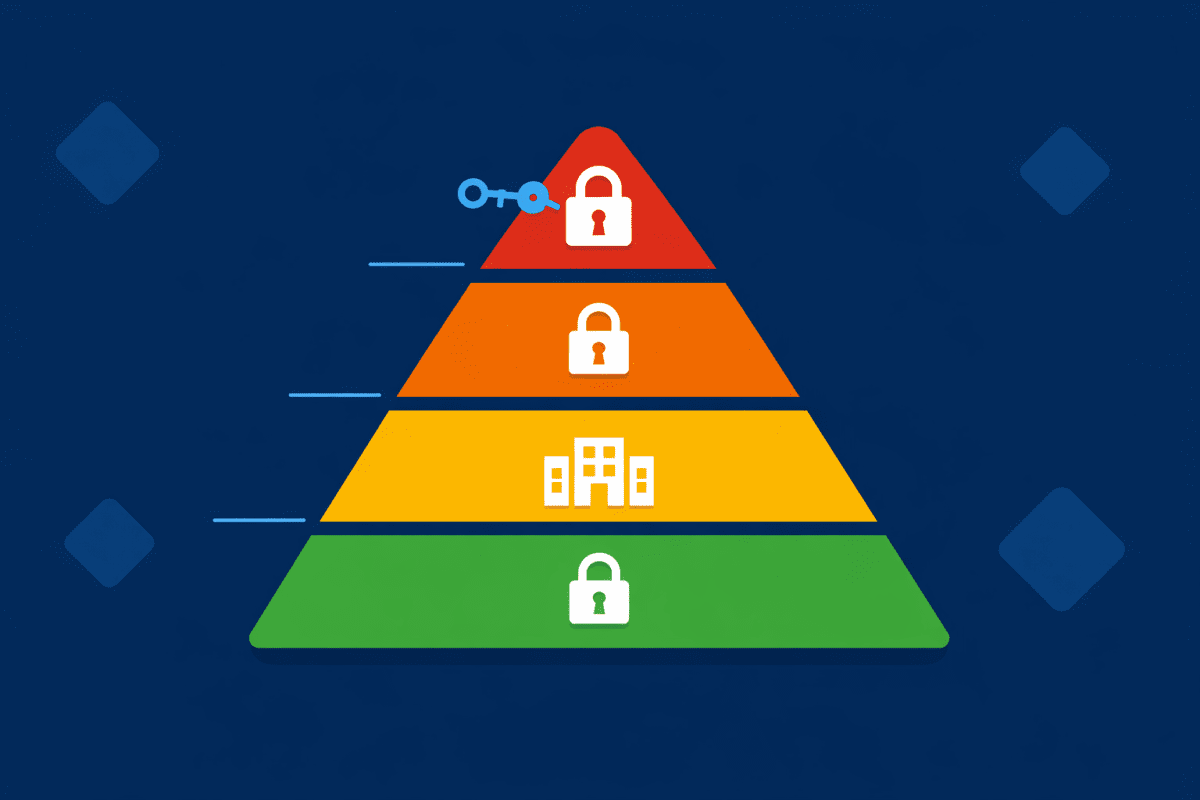
You don’t need a complicated taxonomy. For most businesses — whether you’re a legal firm, accounting practice, healthcare provider, or early learning centre — four levels cover the essentials:
Public — Information you’d happily put on your website. Marketing materials, public announcements, general business information. No restrictions needed.
Internal — Day-to-day operational content meant for staff only. Meeting notes, internal policies, project plans. Not sensitive, but not for external eyes either.
Confidential — Client data, financial records, HR information, legal documents. This is the stuff that causes real damage if it ends up in the wrong hands. Think trust account details, patient records, employee contracts, or parent contact information for early learning centres.
Highly Confidential — Board papers, merger discussions, privileged legal communications, sensitive government data. Restricted to specific people, encrypted, and tightly controlled.
This aligns with the classification approach recommended by the Australian Signals Directorate (ASD) and maps neatly to Microsoft Purview’s default sensitivity label structure.
How Sensitivity Labels Work in Microsoft 365
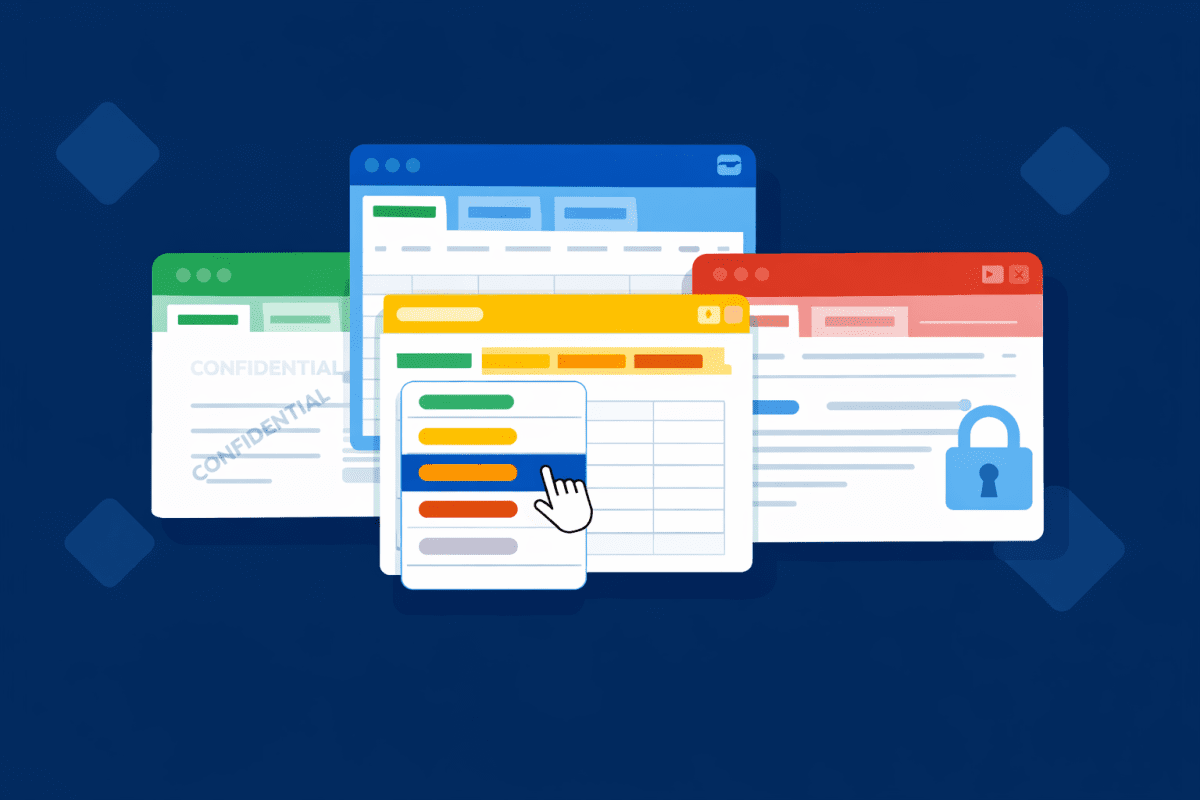
Sensitivity labels are built into Microsoft Purview Information Protection, which is included with Microsoft 365 Business Premium. Once configured, your team can apply labels directly in Word, Excel, PowerPoint, Outlook, and Teams — right from the toolbar.
Each label can enforce different protections depending on the classification level. For a Confidential label, you might apply a “Confidential” watermark, add a header or footer to the document, and restrict who can forward or copy the content. For Highly Confidential, you’d add encryption on top of that, so only specific people can open the file — even if it’s accidentally shared externally.
The protections travel with the document. If someone downloads a Confidential file from SharePoint and emails it to a personal account, the watermark, header, and access restrictions stay in place. That’s the real value — the protection isn’t tied to where the file lives, it’s tied to the file itself.
The licensing reality: Microsoft 365 Business Premium supports manual sensitivity labelling and basic Data Loss Prevention (DLP) policies. That means your team can apply labels themselves in Office apps, and you can set up policies to detect and prevent sensitive information from being shared inappropriately. What Business Premium doesn’t include is automatic labelling — where Microsoft scans your content and applies labels without user intervention. That requires either E5 licensing or the Microsoft 365 E5 Information Protection and Governance add-on (available for Business Premium tenants). For most SMBs, starting with manual labels and a good labelling policy is the right first step.
Getting Started — What to Do First
You don’t need to label every document in your tenant on day one. A phased approach works better:
1. Define your labels. Start with the four levels above, adjusted to your industry. A legal firm might rename “Highly Confidential” to “Legal Privilege.” An accounting practice might add a “Tax Season — Restricted” sub-label. Keep it simple — if your team has to think too hard about which label to use, they won’t use them.
2. Set a default label. Configure “Internal” as the default label for all new documents and emails. This means everything gets at least a baseline classification without anyone having to remember to apply it. You can do this through your label publishing policy in the Microsoft Purview portal.
3. Train your team. This doesn’t need to be a two-hour workshop. A five-minute video showing where the sensitivity button is in Outlook and Word, plus a one-page guide explaining what each label means, gets most people across the line.
4. Add DLP policies. Configure Data Loss Prevention policies to detect when sensitive information types — like Australian tax file numbers, Medicare numbers, or credit card numbers — are shared externally. Business Premium includes built-in sensitive information types that cover most Australian requirements out of the box.
5. Review and refine. After a month, check the Microsoft Purview activity explorer to see which labels are being used, which aren’t, and where sensitive content is being shared. Adjust your labels and policies based on what you find.
Why This Matters for AI Readiness
Microsoft 365 Copilot respects sensitivity labels. If a document is labelled “Highly Confidential” and encrypted, Copilot won’t summarise it for users who don’t have access. When Copilot generates new content based on labelled sources, it automatically inherits the highest-priority sensitivity label from the source material.
But Copilot can only respect labels that actually exist. If your data isn’t classified, Copilot treats everything as equally accessible — and that’s where oversharing risks multiply.
Organisations that invest in data classification now aren’t just improving their security posture today. They’re making sure that when they’re ready to enable AI tools, their data governance is already in place.
In our next post, we’ll cover information barriers and access controls — specifically, how to make sure the right people have access to the right data across your Microsoft 365 environment. If you’ve got classification sorted but permissions are still a mess, that’s the one to watch for.

Frequently Asked Questions
Do I need Microsoft 365 Business Premium for sensitivity labels?
Can I automatically label documents in Microsoft 365?
How long does it take to set up sensitivity labels?
Alternatively, as a Microsoft Reseller, we can provide you a quote.
What happens if a labelled document is shared externally?
Does this help with Essential Eight compliance?
Can InnovateX Solutions help secure my Microsoft 365 tenant?
Ready to Get Your Data Classified?
If you’re running Microsoft 365 Business Premium (or thinking about upgrading) and want to get sensitivity labels set up properly, we can help. InnovateX Solutions works with Brisbane and Moreton Bay region businesses to implement data classification frameworks that are practical, compliant, and built to support future AI adoption.
A discovery call is a no-pressure chat about your business, your IT setup, and what’s actually working (and what isn’t). We’ll give you an honest assessment of where things stand, whether that means working with us or not.
This is the second post in our Microsoft 365 security series. Read the first post: Is Your Microsoft 365 Tenant Actually Secure? Here’s How to Check
Related: