


Most businesses running Microsoft 365 have a permissions problem they don’t know about. Files shared with “Everyone in the organisation,” old project sites still accessible to staff who left years ago, and OneDrive folders shared externally with no expiry date. It’s not malicious — it’s just what happens when sharing is easy and nobody’s reviewing who has access to what.
If you’ve been following our Microsoft 365 security series, you’ll know we’ve already covered how to check whether your tenant is actually secure and how to classify and label your business data. This post tackles the next critical piece: making sure the right people — and only the right people — can access your files, sites, and data.
This matters even more if you’re considering Microsoft 365 Copilot. AI tools don’t check whether someone should have access to a file — they only check whether they do. If your permissions are messy, Copilot will happily surface confidential documents in search results and chat responses for anyone with access.
Why Oversharing Happens (And Why It’s a Bigger Problem Than You Think)
Oversharing in Microsoft 365 isn’t usually a deliberate decision. It builds up gradually through everyday actions that seem perfectly reasonable at the time.
Someone creates a Teams channel for a project and shares a few files. The project ends, but the channel stays. A staff member shares a SharePoint folder with “People in the organisation” because it’s faster than adding specific names. An external contractor gets guest access to a site and nobody removes it when the contract finishes. A manager forwards a OneDrive sharing link to a colleague, who forwards it again.
None of these are security incidents on their own. But over months and years, they create an environment where nobody — including the business owner — actually knows who can see what.
For Brisbane businesses handling sensitive data (and that’s most of you — client records, financial data, employee information, health records), this is a real compliance risk. The Privacy Act doesn’t care whether a data exposure was deliberate or accidental. If personal information is accessible to people who shouldn’t have it, that’s a problem.
And if your business is working toward Essential Eight compliance, restrictive administrative privileges and controlling user access are core requirements — not optional extras.
How Microsoft 365 Permissions Actually Work
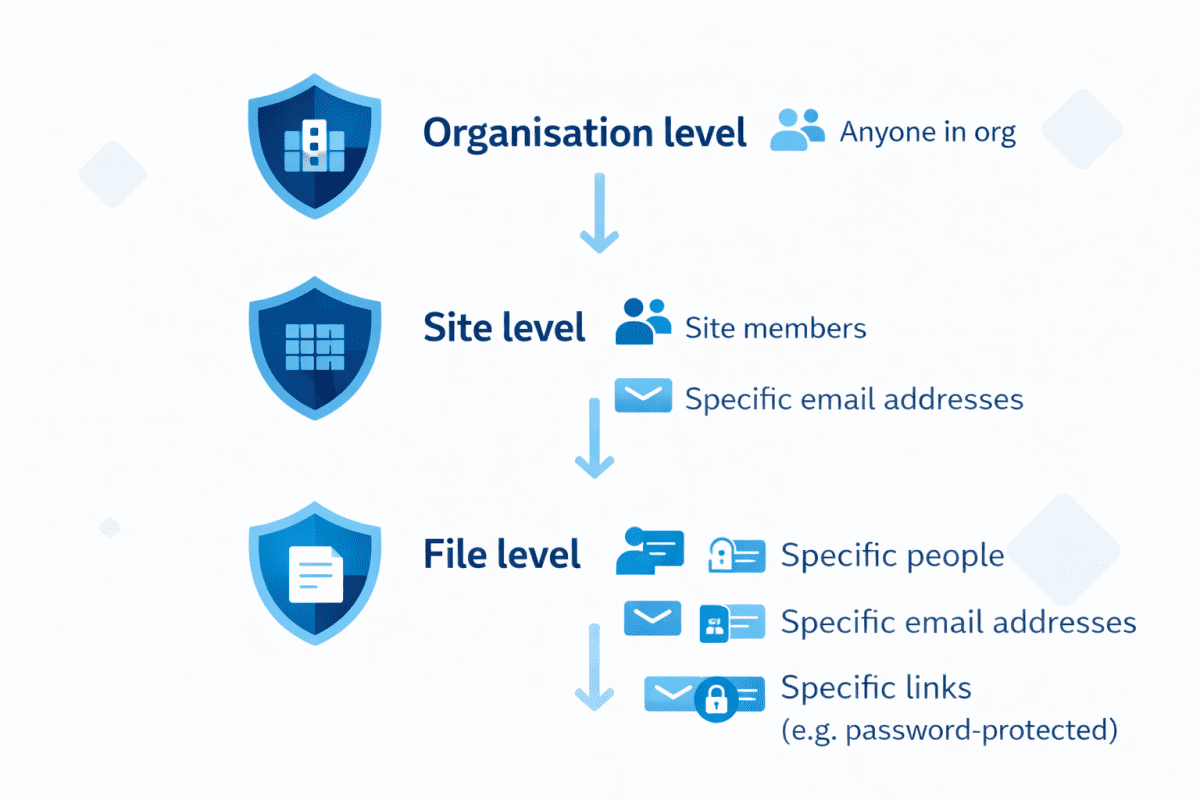
Organisation-Level Sharing Settings
These are the broadest controls, set in the SharePoint admin centre. They define the maximum sharing level available across your entire tenant. The options range from most permissive to most restrictive: “Anyone” links (anonymous, no sign-in required), “New and existing guests” (external users who verify their identity), “Existing guests only,” and “Only people in your organisation.”
Whatever you set here becomes the ceiling. Individual sites can be more restrictive than this setting, but never less.
Our recommendation for most SMBs: Set the organisation-wide default to “New and existing guests” at most. Very few businesses genuinely need anonymous “Anyone” links. If your default is set to “Anyone,” that’s the first thing to change.
Site-Level Permissions
Every SharePoint site and Teams team has its own sharing settings and permission groups. Team sites connected to Microsoft 365 Groups use the group membership to control access — group owners become site owners, and group members become site members.
The key permission levels are straightforward: Owners can manage the site and its settings, Members can add and edit content, and Visitors can only view. Where it gets complicated is when people start creating sharing links or granting individual access outside these groups.
File and Folder Level Sharing
This is where most of the oversharing actually happens. Anyone with Edit access to a file can share it further by default, creating sharing links that may grant broader access than intended.
The default sharing link type matters a lot here. If your tenant default is “People in the organisation,” every time someone clicks “Copy Link” they’re creating a link that any staff member can use. For many files that’s fine. For confidential client documents, it absolutely isn’t.
Five Things to Fix Right Now in Your Microsoft 365 Tenant
You don’t need expensive add-ons to make meaningful improvements. Everything in this section is available with Microsoft 365 Business Premium, which is the licensing tier most of our Brisbane SMB clients are on.
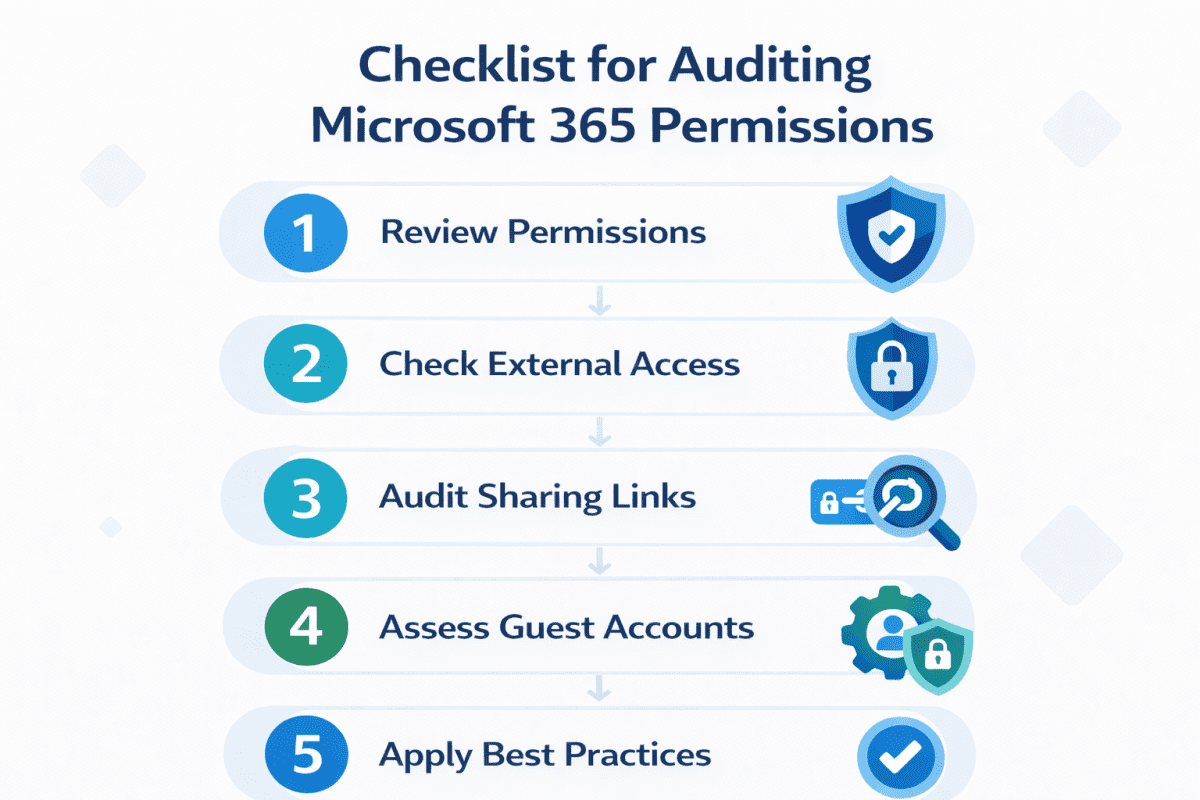
1. Tighten Your Organisation-Wide Sharing Defaults
Open the SharePoint admin centre and head to Policies > Sharing. Check both the SharePoint and OneDrive sharing levels.
Set the organisation-wide sharing to “New and existing guests” unless you have a specific business reason for allowing anonymous links. Then set the default link type to “Specific people” rather than “People in the organisation.” This single change means every time someone shares a file, they’ll need to specify exactly who they’re sharing with.
You should also enable link expiration for any guest sharing links. Thirty days is a reasonable default — it forces people to consciously renew access rather than letting it persist indefinitely.
2. Audit External Sharing Across Your Sites
In the SharePoint admin centre under Sites > Active sites, you can see the external sharing setting for every site. Sort by sharing capability and look for sites set to “Anyone” or “New and existing guests” that don’t need external access.
For each site, ask a simple question: does anyone outside the organisation genuinely need access to this content? If the answer is no, restrict it to “Only people in your organisation.”
Pay special attention to team sites created for internal projects that have ended — these often retain guest access long after the external collaborator has finished their work.
3. Review Microsoft 365 Group Memberships
Every Teams team and most SharePoint sites are backed by a Microsoft 365 Group. The group membership controls who has access. Over time, groups accumulate members who no longer need access — staff who’ve changed roles, contractors who’ve finished, people added “just in case.”
In the Microsoft 365 admin centre under Teams & groups > Active teams & groups, review each group’s membership. For any group connected to a site with sensitive content, confirm that every member still needs access.
You can also set up periodic access reviews through Microsoft Entra ID (formerly Azure Active Directory). This prompts group owners to review and confirm memberships on a regular schedule — quarterly is a good starting point.
4. Check for “Everyone Except External Users” Sharing
This is one of the most common oversharing culprits in Microsoft 365. When someone shares a file or folder with “Everyone except external users,” they’re granting access to every single person in your organisation. For a 10-person business, that might be acceptable. For a 50-person business with different departments handling different client data, it’s a problem.
You can identify this through the SharePoint admin centre’s built-in sharing reports. Look for sites and content shared with broad audiences and decide whether that level of access is appropriate.
If you want to go a step further, you can hide the “Everyone except external users” option from the People Picker using PowerShell, so users can’t accidentally select it when sharing.
5. Set Up Basic Alerts for Unusual Sharing Activity
Microsoft 365 includes a Unified Audit Log that captures sharing events — who shared what, with whom, and when. You can access this through the Microsoft Purview compliance portal.
Set up alert policies for activities that warrant attention: external sharing of files from sensitive sites, creation of “Anyone” sharing links (if you haven’t disabled them), and bulk sharing activity that might indicate a compromised account.
You don’t need to review every sharing event. The goal is to have visibility when something unusual happens rather than finding out months later during an audit — or worse, after a breach.
How This Connects to Data Classification
If you followed our previous post on data classification and sensitivity labels, you might be wondering how labels and permissions work together. The short answer: they’re complementary, and neither is effective on its own.
Sensitivity labels control what people can do with a file (encrypt it, restrict printing, prevent forwarding). Permissions control who can find and open the file in the first place.
A file labelled “Confidential” with encryption is protected regardless of where it ends up. But if the SharePoint site it lives on is accessible to your entire organisation, everyone can see the file exists — even if the label prevents some of them from opening it. That’s still a metadata exposure you want to avoid.
The strongest position is labels and permissions working together: the file is labelled and encrypted, and it sits on a site with restricted access. Belt and braces.

When You Might Need More: SharePoint Advanced Management
Everything above is included with Microsoft 365 Business Premium. But if your business needs more detailed oversight — particularly larger organisations or those preparing for Copilot — Microsoft offers SharePoint Advanced Management (SAM) as an add-on.
SAM is included automatically if you have at least one Microsoft 365 Copilot licence, or it can be purchased separately at around $3 per user per month. It adds capabilities like Data Access Governance reports (which identify overshared sites across your entire tenant), Restricted Access Control (which locks sites down to specific security groups), and Site Access Reviews (which delegate permission reviews to site owners).
For businesses with 10–30 users on Business Premium, the built-in tools covered in this post are usually sufficient. For larger organisations, or those dealing with highly regulated data, SAM is worth evaluating — especially if Copilot is on the roadmap.
We can help you assess whether the built-in controls are enough or whether SAM makes sense for your situation. No pressure, just a practical conversation about what actually fits your business.
Frequently Asked Questions
What's the most common permissions mistake in Microsoft 365?
Can I see who has access to a specific SharePoint site?
How do I remove guest access for someone who no longer needs it?
Does tightening permissions affect productivity?
How does this relate to Essential Eight compliance?
What’s Next in This Series
We’ve now covered tenant security, data classification, and permissions — the three foundations you need before safely adopting AI in your business. In our final post next week, we’ll bring it all together: Is Your Microsoft 365 Tenant Ready for AI? A Pre-Copilot Checklist — a practical guide to everything you need in place before switching on Microsoft 365 Copilot.
Ready to Find Out What’s Actually Exposed in Your Tenant?
Most businesses are surprised by what a permissions audit turns up. If you’d rather know now than find out during a breach or compliance review, book a free MSP Discovery Call with InnovateX Solutions. We’ll walk through your current sharing settings, identify the quick wins, and give you a clear picture of where you stand.
This is the third post in our Microsoft 365 security series. Read the first post: Is Your Microsoft 365 Tenant Actually Secure? Here’s How to Check
Related: